> For the complete documentation index, see [llms.txt](https://topseller.gitbook.io/help/llms.txt). Markdown versions of documentation pages are available by appending `.md` to page URLs; this page is available as [Markdown](https://topseller.gitbook.io/help/instruction/ts-connect/yandex/orders/card-fields.md).
# Поля карточки
В данный раздел специально выведена отдельно настройка полей карточки заказа покупателя в учетной системе, поскольку в большинстве случаев вам больше не придется сюда заходить.
О полях

*
*
*
*
*
*
*
*
*
*
*
*
*
## ⚙️ Подготовкой к импорту заказов
1. Зайдите в Connect и перейдите в раздел `Заказы` подраздел `Поля карточки`:
* в МойСклад в [ЯНДЕКС МАРКЕТ CONNECT](https://online.moysklad.ru/app/#apps?id=91f744bc-ea93-4f71-80ff-dfd12d1fd2ef)
* в отдельную версию [TOPSELLER PRO](https://pro.topseller.ru/)
2. Для создания полей, в которых мы будем хранить данные и из которых будем брать данные, нажмите на после чего поле автоматически создастся и подтянется для дальнейшего выбора
{% hint style="info" %}
🧙♂️ **Примечание:** Альтернативный вариант создания полей
[в МойСклад](https://help.topseller.ru/instruction/connect/prepare-accounting-system/moysklad/fields#alternativnyi-variant-sozdaniya-polei)
{% endhint %}
3. Затем после заполнения всех нужных полей нажмите кнопку
{% hint style="danger" %}
Кнопка может находиться в правой области браузера - особенность интерфейса Connect для МоегоСклада, который технически не позволяет разместить ее внизу формы, как все привыкли. И пользователи её теряли за полосой прокрутки. Поэтому теперь она находится справа - чтобы всегда быть в доступе и на виду.
{% endhint %}
---
# Agent Instructions
This documentation is published with GitBook. GitBook is the documentation platform designed so that both humans and AI agents can read, navigate, and reason over technical content effectively. Learn more at gitbook.com.
## Querying This Documentation
If you need additional information that is not directly available in this page, you can query the documentation dynamically by asking a question.
Perform an HTTP GET request on the current page URL with the `ask` query parameter, and the optional `goal` query parameter:
```
GET https://topseller.gitbook.io/help/instruction/ts-connect/yandex/orders/card-fields.md?ask=&goal=
```
`ask` is the immediate question: it should be specific, self-contained, and written in natural language.
`goal` is optional and describes the broader end goal you are ultimately trying to accomplish on behalf of the user. GitBook uses it to tailor the answer towards what is most useful for that goal.
The response will contain a direct answer to the question and relevant excerpts and sources from the documentation.
Use this mechanism when the answer is not explicitly present in the current page, you need clarification or additional context, or you want to retrieve related documentation sections.
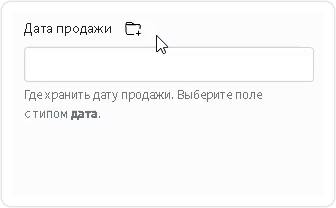
 после чего поле автоматически создастся и подтянется для дальнейшего выбора
 {% hint style="danger" %}
Кнопка
{% hint style="danger" %}
Кнопка