> For the complete documentation index, see [llms.txt](https://topseller.gitbook.io/help/llms.txt). Markdown versions of documentation pages are available by appending `.md` to page URLs; this page is available as [Markdown](https://topseller.gitbook.io/help/instruction/ts-connect/settings/megamarket/api.md).

# Настройка API

Первое и самое главное что нужно настроить, для того чтобы мы начали работать с Вашим аккаунтом - это подключение по API.

## ⚙️ Для того чтобы настроить раздел API: <a href="#dlya-togo-chtoby-nastroit-razdel-api" id="dlya-togo-chtoby-nastroit-razdel-api"></a>

1. Зайдите в Connect:
   * в МойСклад [МЕГАМАРКЕТ CONNECT](https://online.moysklad.ru/app/#apps?category_id=6daf20f8-48e7-4a48-990d-1906eb986abd\&id=a7d06e60-7970-4e49-9371-73468d03ec30)
   * в отельную версию [TOPSELLER PRO](https://pro.topseller.ru/)
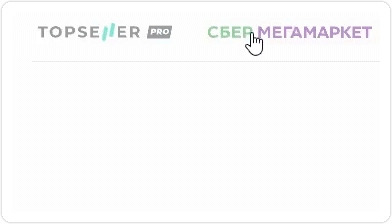
2. Нажмите на логотип маркетплейса <img src="https://help.topseller.ru/~gitbook/image?url=https%3A%2F%2Fstatic.connect.topseller.ru%2Fsomething%2Fhelp%2Flogo%2Flogo_sber.svg&#x26;width=40&#x26;dpr=4&#x26;quality=100&#x26;sign=1f1bd22d&#x26;sv=2" alt="" data-size="line">
3. Затем нажмите на аккаунт, чтобы открылись настройки аккаунта

<figure><img src="https://help.topseller.ru/~gitbook/image?url=https%3A%2F%2Fstatic.connect.topseller.ru%2Fsomething%2Fhelp%2Ffaq_sber%2Fstroke%2F%25D0%25B2%25D1%258B%25D0%25B1%25D0%25BE%25D1%2580_%25D0%25B0%25D0%25BA%25D0%25BA_%25D1%2581%25D0%25B1%25D0%25B5%25D1%2580_%25D0%25B3%25D0%25B8%25D1%2584_%25D0%25BE%25D0%25B1%25D0%25B2.gif&#x26;width=768&#x26;dpr=4&#x26;quality=100&#x26;sign=c0c52009&#x26;sv=2" alt=""><figcaption></figcaption></figure>

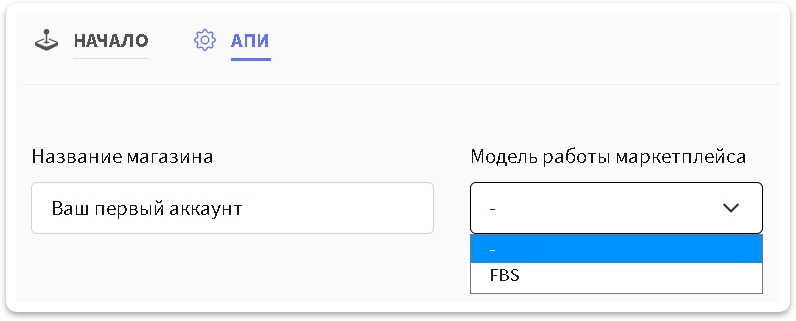
4. Перейдите в раздел `АПИ` . Выберите `Схему работы маркетплейса` и задайте удобное для Вас `Название магазина`:

* FBS (со своего склада) - схема продажи, при которой вы храните товары у себя на складе, следите за новыми заказами, собираете их и передаёте в службу доставки МегаМаркет.

<figure><img src="https://help.topseller.ru/~gitbook/image?url=https%3A%2F%2Fstatic.connect.topseller.ru%2Fsomething%2Fhelp%2Ffaq_sber%2Fstroke%2F%25D0%25B2%25D1%258B%25D0%25B1%25D0%25BE%25D1%2580_%25D1%2581%25D1%2585%25D0%25B5%25D0%25BC%25D1%258B_%25D1%2580%25D0%25B0%25D0%25B1%25D0%25BE%25D1%2582%25D1%258B_%25D1%2581%25D0%25B1%25D0%25B5%25D1%2580_%25D0%25BE%25D0%25B1%25D0%25B2.png&#x26;width=768&#x26;dpr=4&#x26;quality=100&#x26;sign=269bb2fc&#x26;sv=2" alt="" width="375"><figcaption></figcaption></figure>

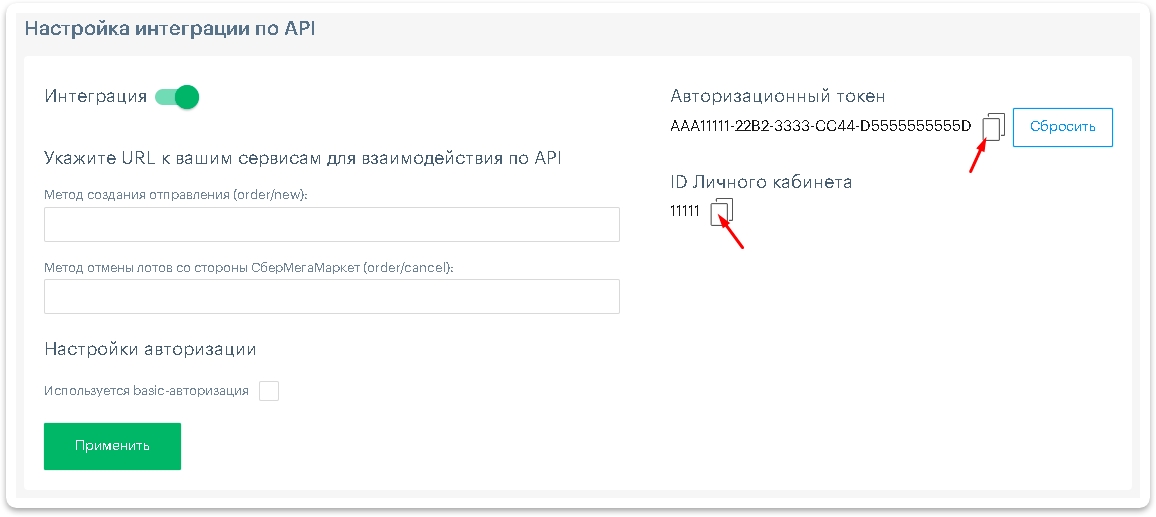
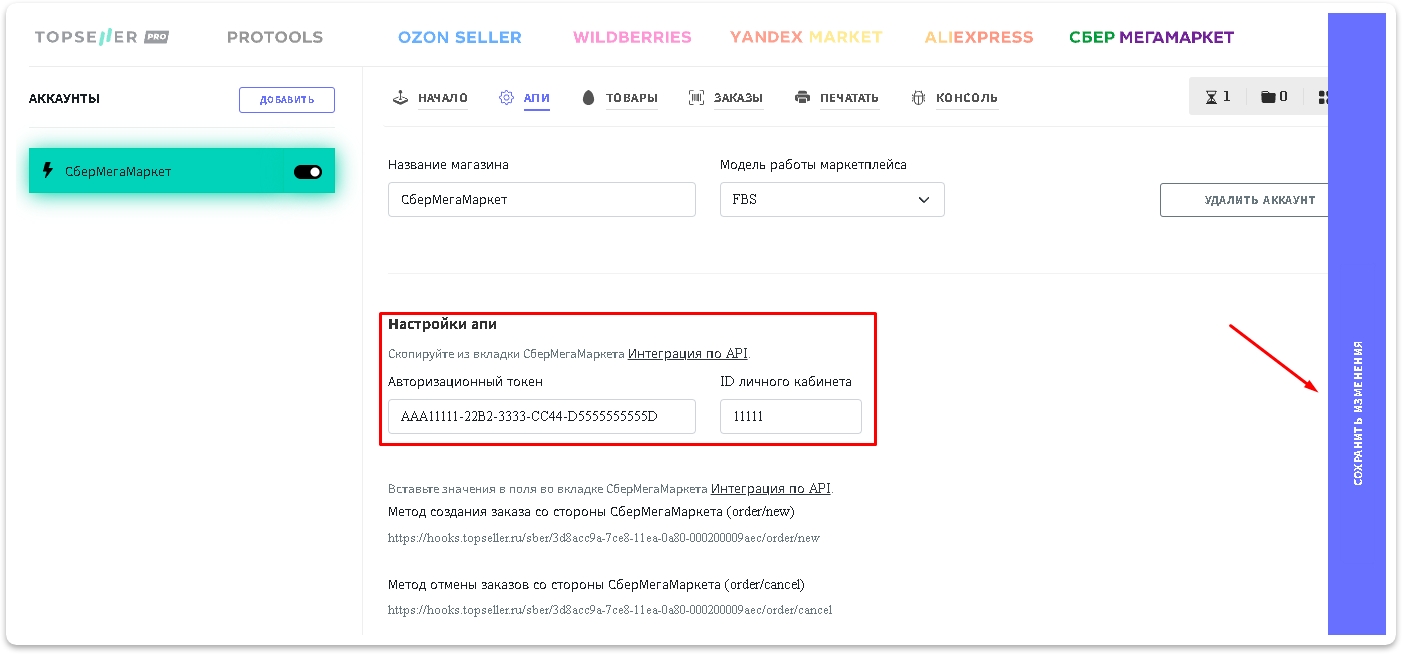
5. Теперь нужно заполнить `Авторизационный токен` и `ID личного кабинета` и нажать кнопку <img src="https://help.topseller.ru/~gitbook/image?url=https%3A%2F%2Fstatic.connect.topseller.ru%2Fsomething%2Fhelp%2Ffaq_common%2Fstroke%2F%25D0%25BA%25D0%25BD%25D0%25BE%25D0%25BF%25D0%25BA%25D0%25B0_%25D1%2581%25D0%25BE%25D1%2585%25D1%2580%25D0%25B0%25D0%25BD%25D0%25B8%25D1%2582%25D1%258C_%25D1%2582%25D0%25BE%25D0%25BF%25D1%2581%25D0%25B5%25D0%25BB%25D0%25BB%25D0%25B5%25D1%2580_%25D0%25BE%25D0%25B1%25D0%25B2_2.png&#x26;width=193&#x26;dpr=4&#x26;quality=100&#x26;sign=3fa11943&#x26;sv=2" alt="" data-size="line"> . Получить их можно в [настройках](https://partner.sbermegamarket.ru/main/account/api-integration) Личного кабинета МегаМаркет

{% hint style="warning" %}
Кнопка <img src="https://help.topseller.ru/~gitbook/image?url=https%3A%2F%2Fstatic.connect.topseller.ru%2Fsomething%2Fhelp%2Ffaq_common%2Fstroke%2F%25D0%25BA%25D0%25BD%25D0%25BE%25D0%25BF%25D0%25BA%25D0%25B0_%25D1%2581%25D0%25BE%25D1%2585%25D1%2580%25D0%25B0%25D0%25BD%25D0%25B8%25D1%2582%25D1%258C_%25D1%2582%25D0%25BE%25D0%25BF%25D1%2581%25D0%25B5%25D0%25BB%25D0%25BB%25D0%25B5%25D1%2580_%25D0%25BE%25D0%25B1%25D0%25B2_2.png&#x26;width=193&#x26;dpr=4&#x26;quality=100&#x26;sign=3fa11943&#x26;sv=2" alt="" data-size="line"> может находиться в правой области браузера - особенность интерфейса Connect для МоегоСклада, который технически не позволяет разместить ее внизу формы, как все привыкли. И пользователи её теряли за полосой прокрутки. Поэтому теперь она находится справа - чтобы всегда быть в доступе и на виду.
{% endhint %}

<figure><img src="https://help.topseller.ru/~gitbook/image?url=https%3A%2F%2Fstatic.connect.topseller.ru%2Fsomething%2Fhelp%2Ffaq_sber%2Fstroke%2F%25D1%2581%25D0%25B1%25D0%25B5%25D1%2580_%25D0%25B0%25D0%25BF%25D0%25B8_%25D0%25BE%25D0%25B1%25D0%25B2.png&#x26;width=768&#x26;dpr=4&#x26;quality=100&#x26;sign=bbcef1c0&#x26;sv=2" alt=""><figcaption></figcaption></figure>

<figure><img src="https://help.topseller.ru/~gitbook/image?url=https%3A%2F%2Fstatic.connect.topseller.ru%2Fsomething%2Fhelp%2Ffaq_sber%2Fstroke%2F%25D0%25B7%25D0%25B0%25D0%25BF%25D0%25BE%25D0%25BB%25D0%25BD%25D0%25B5%25D0%25BD%25D0%25BD%25D0%25BE%25D0%25B5_%25D0%25B0%25D0%25BF%25D0%25B8_%25D1%2581%25D0%25B1%25D0%25B5%25D1%2580_%25D0%25BE%25D0%25B1%25D0%25B2.png&#x26;width=768&#x26;dpr=4&#x26;quality=100&#x26;sign=c3c8f7dc&#x26;sv=2" alt=""><figcaption></figcaption></figure>

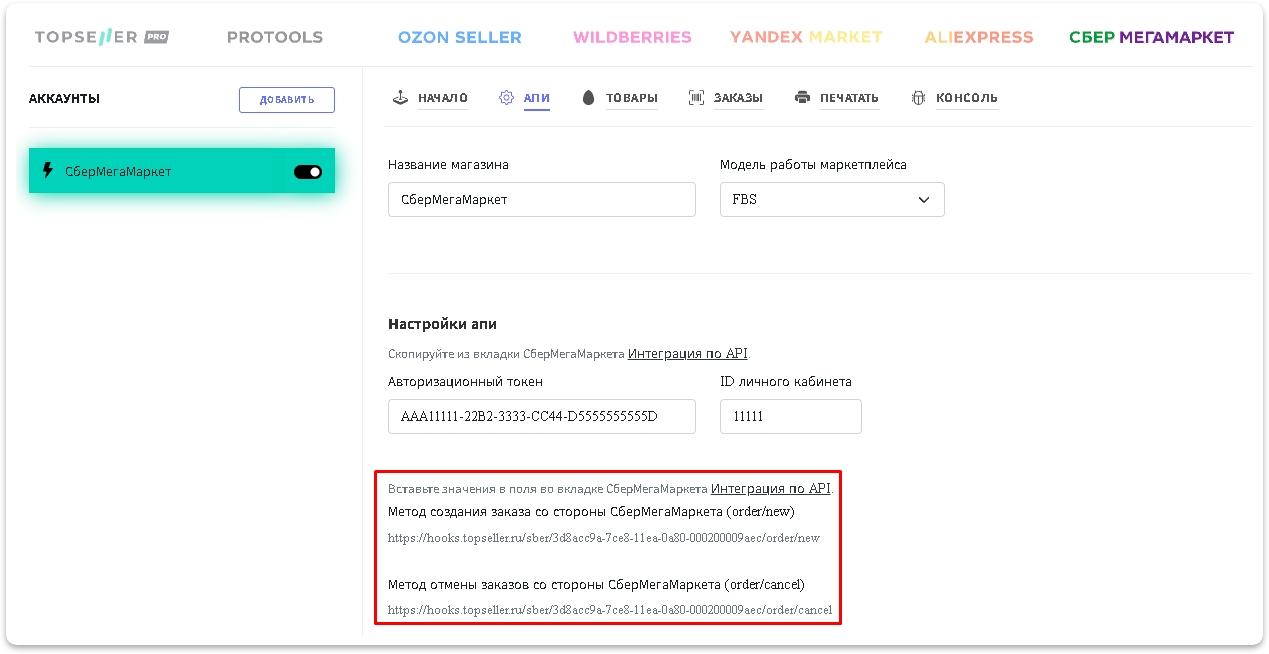
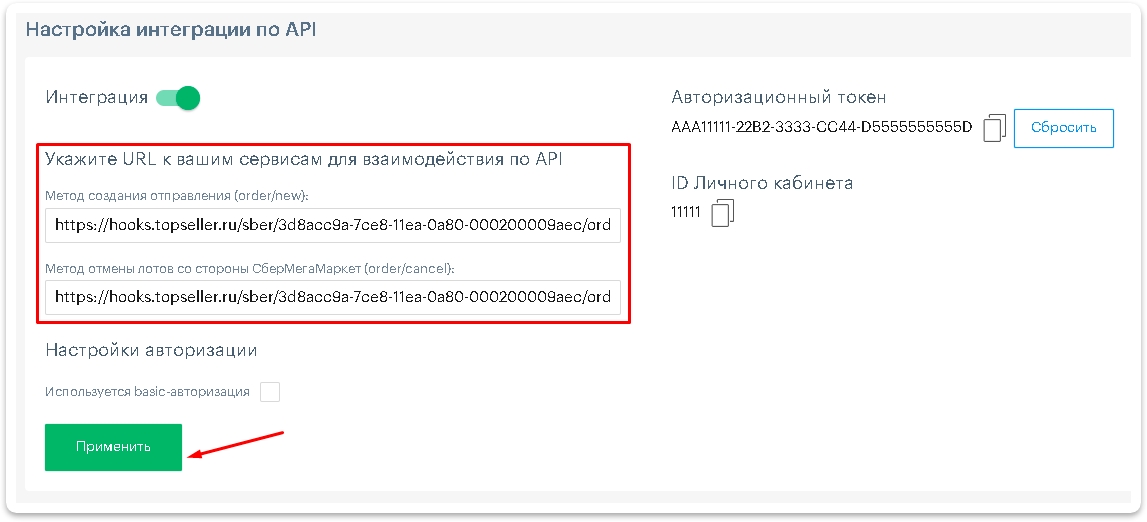
6\. Также нужно в ЛК МегаМаркет указать `URL к вашим сервисам для взаимодействия по API` . Их можно найти ниже под полем для авторизационного токена в нашем приложении и вставить их в личном кабинете.

<figure><img src="https://help.topseller.ru/~gitbook/image?url=https%3A%2F%2Fstatic.connect.topseller.ru%2Fsomething%2Fhelp%2Ffaq_sber%2Fstroke%2F%25D0%25B3%25D0%25B4%25D0%25B5_%25D0%25B2%25D0%25B7%25D1%258F%25D1%2582%25D1%258C_%25D1%2581%25D1%2581%25D1%258B%25D0%25BB%25D0%25BA%25D0%25B8_%25D0%25B4%25D0%25BB%25D1%258F_%25D0%25BB%25D0%25BA_%25D1%2581%25D0%25B1%25D0%25B5%25D1%2580_%25D0%25BE%25D0%25B1%25D0%25B2.png&#x26;width=768&#x26;dpr=4&#x26;quality=100&#x26;sign=1c4a8993&#x26;sv=2" alt=""><figcaption></figcaption></figure>

После чего примените изменения в ЛК СберМегаМаркет

<figure><img src="https://help.topseller.ru/~gitbook/image?url=https%3A%2F%2Fstatic.connect.topseller.ru%2Fsomething%2Fhelp%2Ffaq_sber%2Fstroke%2F%25D0%25B2%25D1%2581%25D1%2582%25D0%25B0%25D0%25B2%25D0%25B8%25D1%2582%25D1%258C_%25D1%2581%25D1%2581%25D1%258B%25D0%25BB%25D0%25BA%25D0%25B8_%25D0%25B2_%25D0%25BB%25D0%25BA_%25D1%2581%25D0%25B1%25D0%25B5%25D1%2580_%25D0%25BE%25D0%25B1%25D0%25B2.png&#x26;width=768&#x26;dpr=4&#x26;quality=100&#x26;sign=cb66fb96&#x26;sv=2" alt=""><figcaption></figcaption></figure>

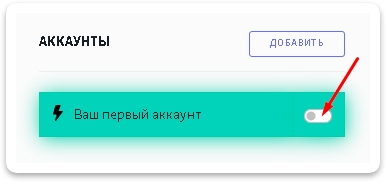
7\. После успешной авторизации по API **обязательно** включите аккаунт

<figure><img src="https://help.topseller.ru/~gitbook/image?url=https%3A%2F%2Fstatic.connect.topseller.ru%2Fsomething%2Fhelp%2Ffaq_common%2Fstroke%2F%25D0%25B2%25D0%25BA%25D0%25BB_%25D0%25B0%25D0%25BA%25D0%25BA%25D0%25B0%25D1%2583%25D0%25BD%25D1%2582_%25D0%25BE%25D0%25B1%25D0%25B2.png&#x26;width=768&#x26;dpr=4&#x26;quality=100&#x26;sign=2e84de68&#x26;sv=2" alt=""><figcaption></figcaption></figure>


---

# Agent Instructions
This documentation is published with GitBook. GitBook is the documentation platform designed so that both humans and AI agents can read, navigate, and reason over technical content effectively. Learn more at gitbook.com.

## Querying This Documentation
If you need additional information that is not directly available in this page, you can query the documentation dynamically by asking a question.

Perform an HTTP GET request on the current page URL with the `ask` query parameter, and the optional `goal` query parameter:

```
GET https://topseller.gitbook.io/help/instruction/ts-connect/settings/megamarket/api.md?ask=<question>&goal=<endgoal>
```

`ask` is the immediate question: it should be specific, self-contained, and written in natural language.
`goal` is optional and describes the broader end goal you are ultimately trying to accomplish on behalf of the user. GitBook uses it to tailor the answer towards what is most useful for that goal.

The response will contain a direct answer to the question and relevant excerpts and sources from the documentation.

Use this mechanism when the answer is not explicitly present in the current page, you need clarification or additional context, or you want to retrieve related documentation sections.