> For the complete documentation index, see [llms.txt](https://topseller.gitbook.io/help/llms.txt). Markdown versions of documentation pages are available by appending `.md` to page URLs; this page is available as [Markdown](https://topseller.gitbook.io/help/instruction/ts-connect/api/products/import-stocks.md).
# Импорт Остатков
При первичной интеграции Вы можете перенести актуальные остатки с маркетплейса.
{% hint style="info" %}
🧙♂️ **Примечание. Т**оповые версии Connect имеют дополнительные функции. Данная функция только для версий: Standart и Pro.
{% endhint %}
{% hint style="danger" %}
*Эта функция не для сведения остатков. При первичной интеграции Вы можете перенести актуальные остатки с маркетплейса. Каким способом переносить остатки зависит от того переносите ли Вы историю заказов*
{% endhint %}
## Просто взять остатки с Озона и плюсануть их в "Учетной системе"
Если вы не будете переносить историю заказов, то используйте этот метод для переноса актуальных остатков.
1. Зайдите в Connect и перейдите в раздел `Товары` подраздел `Импорт остатков`:
* в МойСклад в [OZON CONNECT](https://online.moysklad.ru/app/#apps?id=073727b8-26f6-4edb-8814-de239333328a)
* в отдельную версию [TOPSELLER PRO](https://pro.topseller.ru/)
2. Выберите первый способ
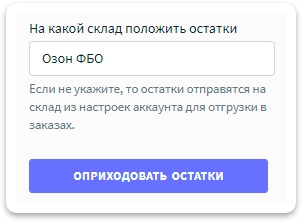
3. Выберите на какой склад перенести остатки и нажмите кнопку.
4. Дождитесь завершения задачи.
{% hint style="info" %}
💡**Справка.** Отслеживать выполнение задач можно в специальной *"плашке"* справа в верхнем углу:

{% endhint %}
{% hint style="info" %}
💡**Справка.** При нажатии на нее откроется список выполняющихся задач и задач в очереди:

{% endhint %}
## Сделать остатки как на Озоне, плюсовать к **остатку** в "Учетной системе"
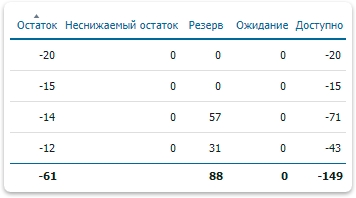
Используется, если вы перенесли историю заказов, после чего образовались минусовые остатки и у Вас нет зарезервированного остатка. *(Пример ниже)*

1. Зайдите в Connect и перейдите в раздел `Товары` подраздел `Импорт остатков`:
* в МойСклад в [OZON CONNECT](https://online.moysklad.ru/app/#apps?id=073727b8-26f6-4edb-8814-de239333328a)
* в отдельную версию [TOPSELLER PRO](https://pro.topseller.ru/)
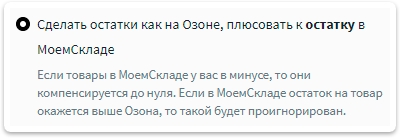
2. Выберите второй способ
3. Выберите на какой склад перенести остатки и нажмите кнопку

4. Дождитесь завершения задачи.
{% hint style="info" %}
💡**Справка.** Отслеживать выполнение задач можно в специальной *"плашке"* справа в верхнем углу:
{% endhint %}
{% hint style="info" %}
💡**Справка.** При нажатии на нее откроется список выполняющихся задач и задач в очереди:

{% endhint %}
## Сделать остатки как на Озоне, плюсовать к **доступно** в "Учетной системе"
Используется после переноса истории заказов, с минусовыми остатками и остатком в резерве. *(Пример ниже)*
1. Зайдите в Connect и перейдите в раздел `Товары` подраздел `Импорт остатков`:
* в МойСклад в [OZON CONNECT](https://online.moysklad.ru/app/#apps?id=073727b8-26f6-4edb-8814-de239333328a)
* в отдельную версию [TOPSELLER PRO](https://pro.topseller.ru/)
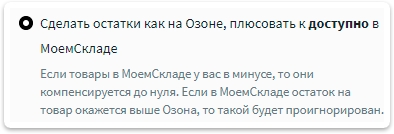
2. Выберите третий способ
3. Выберите на какой склад перенести остатки и нажмите кнопку
4. Дождитесь завершения задачи.
{% hint style="info" %}
💡**Справка.** Отслеживать выполнение задач можно в специальной *"плашке"* справа в верхнем углу:

{% endhint %}
{% hint style="info" %}
💡**Справка.** При нажатии на нее откроется список выполняющихся задач и задач в очереди:

{% endhint %}
---
# Agent Instructions
This documentation is published with GitBook. GitBook is the documentation platform designed so that both humans and AI agents can read, navigate, and reason over technical content effectively. Learn more at gitbook.com.
## Querying This Documentation
If you need additional information that is not directly available in this page, you can query the documentation dynamically by asking a question.
Perform an HTTP GET request on the current page URL with the `ask` query parameter, and the optional `goal` query parameter:
```
GET https://topseller.gitbook.io/help/instruction/ts-connect/api/products/import-stocks.md?ask=&goal=
```
`ask` is the immediate question: it should be specific, self-contained, and written in natural language.
`goal` is optional and describes the broader end goal you are ultimately trying to accomplish on behalf of the user. GitBook uses it to tailor the answer towards what is most useful for that goal.
The response will contain a direct answer to the question and relevant excerpts and sources from the documentation.
Use this mechanism when the answer is not explicitly present in the current page, you need clarification or additional context, or you want to retrieve related documentation sections.


 4. Дождитесь завершения задачи.
{% hint style="info" %}
💡**Справка.** Отслеживать выполнение задач можно в специальной *"плашке"* справа в верхнем углу:

{% endhint %}
{% hint style="info" %}
💡**Справка.** При нажатии на нее откроется список выполняющихся задач и задач в очереди:

{% endhint %}
## Сделать остатки как на Озоне, плюсовать к **остатку** в "Учетной системе"
Используется, если вы перенесли историю заказов, после чего образовались минусовые остатки и у Вас нет зарезервированного остатка. *(Пример ниже)*

1. Зайдите в Connect и перейдите в раздел `Товары` подраздел `Импорт остатков`:
* в МойСклад в [OZON CONNECT](https://online.moysklad.ru/app/#apps?id=073727b8-26f6-4edb-8814-de239333328a)
* в отдельную версию [TOPSELLER PRO](https://pro.topseller.ru/)
2. Выберите второй способ
4. Дождитесь завершения задачи.
{% hint style="info" %}
💡**Справка.** Отслеживать выполнение задач можно в специальной *"плашке"* справа в верхнем углу:

{% endhint %}
{% hint style="info" %}
💡**Справка.** При нажатии на нее откроется список выполняющихся задач и задач в очереди:

{% endhint %}
## Сделать остатки как на Озоне, плюсовать к **остатку** в "Учетной системе"
Используется, если вы перенесли историю заказов, после чего образовались минусовые остатки и у Вас нет зарезервированного остатка. *(Пример ниже)*

1. Зайдите в Connect и перейдите в раздел `Товары` подраздел `Импорт остатков`:
* в МойСклад в [OZON CONNECT](https://online.moysklad.ru/app/#apps?id=073727b8-26f6-4edb-8814-de239333328a)
* в отдельную версию [TOPSELLER PRO](https://pro.topseller.ru/)
2. Выберите второй способ
 3. Выберите на какой склад перенести остатки и нажмите кнопку
  1. Зайдите в Connect и перейдите в раздел `Товары` подраздел `Импорт остатков`:
* в МойСклад в [OZON CONNECT](https://online.moysklad.ru/app/#apps?id=073727b8-26f6-4edb-8814-de239333328a)
* в отдельную версию [TOPSELLER PRO](https://pro.topseller.ru/)
2. Выберите третий способ
1. Зайдите в Connect и перейдите в раздел `Товары` подраздел `Импорт остатков`:
* в МойСклад в [OZON CONNECT](https://online.moysklad.ru/app/#apps?id=073727b8-26f6-4edb-8814-de239333328a)
* в отдельную версию [TOPSELLER PRO](https://pro.topseller.ru/)
2. Выберите третий способ
 3. Выберите на какой склад перенести остатки и нажмите кнопку