> For the complete documentation index, see [llms.txt](https://topseller.gitbook.io/help/llms.txt). Markdown versions of documentation pages are available by appending `.md` to page URLs; this page is available as [Markdown](https://topseller.gitbook.io/help/instruction/ts-connect/api/orders/fix.md).

# Фиксы

На данной странице собраны фиксы, которые в целом Вам вообще не понадобятся. Но, если что то пошло не так, можно поправить разные вещи, не обращаясь в техподдержку.

## Документы и дата продажи <a href="#dokumenty-i-data-prodazhi" id="dokumenty-i-data-prodazhi"></a>

### Создание недостающих документов <a href="#sozdanie-nedostayushikh-dokumentov" id="sozdanie-nedostayushikh-dokumentov"></a>

Чтобы создать документы заказам, где по каким-то причинам не создались документы Вам нужно:

1. Поставить галочку на пункт **Пересмотреть данные о документах в приложении**, если вдруг у вас были документы, вы их удалили, а теперь они никак не пересоздаются

<figure><img src="https://help.topseller.ru/~gitbook/image?url=https%3A%2F%2Fstatic.connect.topseller.ru%2Fsomething%2Fhelp%2Ffaq_ozon%2Fstroke%2F%25D1%2584%25D0%25B8%25D0%25BA%25D1%2581_%25D1%2583%25D0%25B4%25D0%25B0%25D0%25BB%25D0%25B5%25D0%25BD%25D0%25B8%25D0%25B5_%25D0%25B4%25D0%25BE%25D0%25BA%25D1%2583%25D0%25BC%25D0%25B5%25D0%25BD%25D1%2582%25D0%25BE%25D0%25B2_%25D0%25B8%25D0%25B7_%25D0%25B1%25D0%25B0%25D0%25B7%25D1%258B_%25D0%25BE%25D0%25B1%25D0%25B2.png&#x26;width=768&#x26;dpr=4&#x26;quality=100&#x26;sign=e47a6838&#x26;sv=2" alt=""><figcaption></figcaption></figure>

2. Поставьте галочку на пункт **Создавать документы** и выберите какие документы вы хотите пересоздать заказам

<figure><img src="https://help.topseller.ru/~gitbook/image?url=https%3A%2F%2Fstatic.connect.topseller.ru%2Fsomething%2Fhelp%2Ffaq_ozon%2Fstroke%2F%25D1%2584%25D0%25B8%25D0%25BA%25D1%2581_%25D1%2581%25D0%25BE%25D0%25B7%25D0%25B4%25D0%25B0%25D1%2582%25D1%258C_%25D0%25BD%25D0%25B5%25D0%25B4%25D0%25BE%25D1%2581%25D1%2582%25D0%25B0%25D1%258E%25D1%2589%25D0%25B8%25D0%25B5_%25D0%25B4%25D0%25BE%25D0%25BA%25D0%25B8_%25D0%25BE%25D0%25B1%25D0%25B2.png&#x26;width=768&#x26;dpr=4&#x26;quality=100&#x26;sign=425f804&#x26;sv=2" alt=""><figcaption></figcaption></figure>

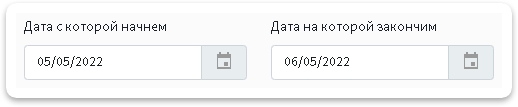
3. Выберите период за который хотите досоздать документы заказам

<figure><img src="https://help.topseller.ru/~gitbook/image?url=https%3A%2F%2Fstatic.connect.topseller.ru%2Fsomething%2Fhelp%2Ffaq_common%2Fstroke%2F%25D1%2584%25D0%25B8%25D0%25BA%25D1%2581_%25D0%25B2%25D1%258B%25D0%25B1%25D0%25BE%25D1%2580_%25D0%25B4%25D0%25B0%25D1%2582%25D1%258B_%25D1%2584%25D0%25B8%25D0%25BA%25D1%2581%25D0%25B0_%25D0%25BE%25D0%25B1%25D0%25B2.png&#x26;width=768&#x26;dpr=4&#x26;quality=100&#x26;sign=f05c1d80&#x26;sv=2" alt=""><figcaption></figcaption></figure>

4. Нажмите кнопку <img src="https://help.topseller.ru/~gitbook/image?url=https%3A%2F%2Fstatic.connect.topseller.ru%2Fsomething%2Fhelp%2Ffaq_common%2Fstroke%2F%25D0%25BA%25D0%25BD%25D0%25BE%25D0%25BF%25D0%25BA%25D0%25B0_%25D0%25BF%25D1%2580%25D0%25B8%25D0%25BC%25D0%25B5%25D0%25BD%25D0%25B8%25D1%2582%25D1%258C_%25D0%25B2%25D1%258B%25D0%25B1%25D1%2580%25D0%25B0%25D0%25BD%25D0%25BD%25D1%258B%25D0%25B5_%25D1%2584%25D0%25B8%25D0%25BA%25D1%2581%25D1%258B_%25D0%25BE%25D0%25B1%25D0%25B2.png&#x26;width=241&#x26;dpr=4&#x26;quality=100&#x26;sign=901f3bd1&#x26;sv=2" alt="" data-size="line">
5. Дождитесь завершения задачи.

{% hint style="info" %}
💡**Справка.** Отслеживать выполнение задач можно в специальной *"плашке"* справа в верхнем углу:

![](https://help.topseller.ru/~gitbook/image?url=https%3A%2F%2Fstatic.connect.topseller.ru%2Fsomething%2Fhelp%2Ffaq_tasks%2F%25D0%25BF%25D0%25BB%25D0%25B0%25D1%2588%25D0%25BA%25D0%25B0_%25D0%25B7%25D0%25B0%25D0%25B4%25D0%25B0%25D1%2587_%25D0%25BE%25D0%25B1%25D0%25B2.png\&width=300\&dpr=4\&quality=100\&sign=d3c1e831\&sv=2)
{% endhint %}

{% hint style="info" %}
💡**Справка.** При нажатии на нее откроется список выполняющихся задач и задач в очереди
{% endhint %}

### Корректировка даты продажи за период <a href="#korrektirovka-daty-prodazhi-za-period" id="korrektirovka-daty-prodazhi-za-period"></a>

Чтобы проставить дату продажи за период, вам нужно:

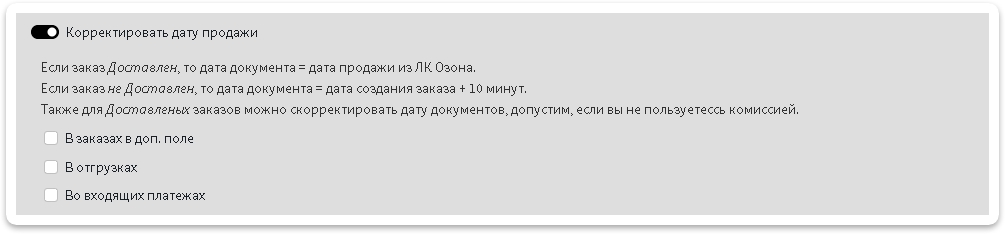
1. Поставить галочку на пункт **Корректировать дату продажи** и выбрать где именно нужно ее скорректировать. Доступно 3 варианта: В доп. поле в заказах, в отгрузках и во входящих платежах

<figure><img src="https://help.topseller.ru/~gitbook/image?url=https%3A%2F%2Fstatic.connect.topseller.ru%2Fsomething%2Fhelp%2Ffaq_ozon%2Fstroke%2F%25D1%2584%25D0%25B8%25D0%25BA%25D1%2581_%25D0%25B4%25D0%25B0%25D1%2582%25D1%258B_%25D0%25BF%25D1%2580%25D0%25BE%25D0%25B4%25D0%25B0%25D0%25B6%25D0%25B8_%25D0%25B2_%25D0%25B4%25D0%25BE%25D0%25BA%25D1%2583%25D0%25BC%25D0%25B5%25D0%25BD%25D1%2582%25D0%25B0%25D1%2585_%25D0%25BE%25D0%25B7%25D0%25BE%25D0%25BD_%25D0%25BE%25D0%25B1%25D0%25B2.png&#x26;width=768&#x26;dpr=4&#x26;quality=100&#x26;sign=25d3b2f9&#x26;sv=2" alt=""><figcaption></figcaption></figure>

2. Выберите период за который хотите досоздать документы заказам

<figure><img src="https://help.topseller.ru/~gitbook/image?url=https%3A%2F%2Fstatic.connect.topseller.ru%2Fsomething%2Fhelp%2Ffaq_common%2Fstroke%2F%25D1%2584%25D0%25B8%25D0%25BA%25D1%2581_%25D0%25B2%25D1%258B%25D0%25B1%25D0%25BE%25D1%2580_%25D0%25B4%25D0%25B0%25D1%2582%25D1%258B_%25D1%2584%25D0%25B8%25D0%25BA%25D1%2581%25D0%25B0_%25D0%25BE%25D0%25B1%25D0%25B2.png&#x26;width=768&#x26;dpr=4&#x26;quality=100&#x26;sign=f05c1d80&#x26;sv=2" alt=""><figcaption></figcaption></figure>

3. Нажмите кнопку <img src="https://help.topseller.ru/~gitbook/image?url=https%3A%2F%2Fstatic.connect.topseller.ru%2Fsomething%2Fhelp%2Ffaq_common%2Fstroke%2F%25D0%25BA%25D0%25BD%25D0%25BE%25D0%25BF%25D0%25BA%25D0%25B0_%25D0%25BF%25D1%2580%25D0%25B8%25D0%25BC%25D0%25B5%25D0%25BD%25D0%25B8%25D1%2582%25D1%258C_%25D0%25B2%25D1%258B%25D0%25B1%25D1%2580%25D0%25B0%25D0%25BD%25D0%25BD%25D1%258B%25D0%25B5_%25D1%2584%25D0%25B8%25D0%25BA%25D1%2581%25D1%258B_%25D0%25BE%25D0%25B1%25D0%25B2.png&#x26;width=241&#x26;dpr=4&#x26;quality=100&#x26;sign=901f3bd1&#x26;sv=2" alt="" data-size="line">
4. Дождитесь завершения задачи.

{% hint style="info" %}
💡**Справка.** Отслеживать выполнение задач можно в специальной *"плашке"* справа в верхнем углу:

![](https://help.topseller.ru/~gitbook/image?url=https%3A%2F%2Fstatic.connect.topseller.ru%2Fsomething%2Fhelp%2Ffaq_tasks%2F%25D0%25BF%25D0%25BB%25D0%25B0%25D1%2588%25D0%25BA%25D0%25B0_%25D0%25B7%25D0%25B0%25D0%25B4%25D0%25B0%25D1%2587_%25D0%25BE%25D0%25B1%25D0%25B2.png\&width=300\&dpr=4\&quality=100\&sign=d3c1e831\&sv=2)
{% endhint %}

{% hint style="info" %}
💡**Справка.** При нажатии на нее откроется список выполняющихся задач и задач в очереди
{% endhint %}

## Мусорные заказы <a href="#musornye-zakazy" id="musornye-zakazy"></a>

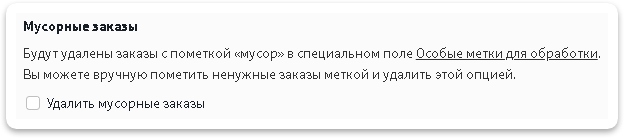
Данная задача удаляет заказы с пометкой «мусор» в специальном поле **Особые метки для обработки** (настраивается в разделе [*импорта заказов*](/help/instruction/ts-connect/api/orders/import.md)):

{% hint style="info" %}
🧙‍♂️ **Примечание:**

* ***Мусорными заказами являются*** заказы, у которых изменилась последняя цифра отправления из-за того, что у заказа изменился номер упаковки, то есть например заказ мог быть 00000000-0000-1, а стал 00000000-0000-2. Первый заказ нам надо удалить, потому что он больше не актуален.
* Такие заказы обнаруживаются автоматически задачей по синхронизации статусов. Если вы не настраивали [автоматическое удаление](https://topseller.gitbook.io/help/instruction/ts-connect/api/orders/pages/naewViJvBr1JoF4N525C#id-4.-musornye-zakazy) таких заказов после обнаружения, то данная задача поможет вам это сделать
  {% endhint %}

1. Включите пункт `Удалить мусорные заказы`

<figure><img src="https://help.topseller.ru/~gitbook/image?url=https%3A%2F%2Fstatic.connect.topseller.ru%2Fsomething%2Fhelp%2Ffaq_ozon%2Fstroke%2F%25D1%2584%25D0%25B8%25D0%25BA%25D1%2581_%25D1%2583%25D0%25B4%25D0%25B0%25D0%25BB%25D0%25B5%25D0%25BD%25D0%25B8%25D0%25B5_%25D0%25BC%25D1%2583%25D1%2581%25D0%25BE%25D1%2580%25D0%25BD%25D1%258B%25D1%2585_%25D0%25B7%25D0%25B0%25D0%25BA%25D0%25B0%25D0%25B7%25D0%25BE%25D0%25B2_%25D0%25BE%25D0%25B7%25D0%25BE%25D0%25BD_%25D0%25BE%25D0%25B1%25D0%25B2.png&#x26;width=768&#x26;dpr=4&#x26;quality=100&#x26;sign=19341ba9&#x26;sv=2" alt=""><figcaption></figcaption></figure>

2. Выберите период за который хотите удалить

<figure><img src="https://help.topseller.ru/~gitbook/image?url=https%3A%2F%2Fstatic.connect.topseller.ru%2Fsomething%2Fhelp%2Ffaq_common%2Fstroke%2F%25D1%2584%25D0%25B8%25D0%25BA%25D1%2581_%25D0%25B2%25D1%258B%25D0%25B1%25D0%25BE%25D1%2580_%25D0%25B4%25D0%25B0%25D1%2582%25D1%258B_%25D1%2584%25D0%25B8%25D0%25BA%25D1%2581%25D0%25B0_%25D0%25BE%25D0%25B1%25D0%25B2.png&#x26;width=768&#x26;dpr=4&#x26;quality=100&#x26;sign=f05c1d80&#x26;sv=2" alt=""><figcaption></figcaption></figure>

3. Нажмите кнопку <img src="https://help.topseller.ru/~gitbook/image?url=https%3A%2F%2Fstatic.connect.topseller.ru%2Fsomething%2Fhelp%2Ffaq_common%2Fstroke%2F%25D0%25BA%25D0%25BD%25D0%25BE%25D0%25BF%25D0%25BA%25D0%25B0_%25D0%25BF%25D1%2580%25D0%25B8%25D0%25BC%25D0%25B5%25D0%25BD%25D0%25B8%25D1%2582%25D1%258C_%25D0%25B2%25D1%258B%25D0%25B1%25D1%2580%25D0%25B0%25D0%25BD%25D0%25BD%25D1%258B%25D0%25B5_%25D1%2584%25D0%25B8%25D0%25BA%25D1%2581%25D1%258B_%25D0%25BE%25D0%25B1%25D0%25B2.png&#x26;width=241&#x26;dpr=4&#x26;quality=100&#x26;sign=901f3bd1&#x26;sv=2" alt="" data-size="line">
4. Дождитесь завершения задачи.

{% hint style="info" %}
💡**Справка.** Отслеживать выполнение задач можно в специальной *"плашке"* справа в верхнем углу:

![](https://help.topseller.ru/~gitbook/image?url=https%3A%2F%2Fstatic.connect.topseller.ru%2Fsomething%2Fhelp%2Ffaq_tasks%2F%25D0%25BF%25D0%25BB%25D0%25B0%25D1%2588%25D0%25BA%25D0%25B0_%25D0%25B7%25D0%25B0%25D0%25B4%25D0%25B0%25D1%2587_%25D0%25BE%25D0%25B1%25D0%25B2.png\&width=300\&dpr=4\&quality=100\&sign=d3c1e831\&sv=2)
{% endhint %}

{% hint style="info" %}
💡**Справка.** При нажатии на нее откроется список выполняющихся задач и задач в очереди
{% endhint %}

## **Дополнительные поля** <a href="#dopolnitelnye-polya" id="dopolnitelnye-polya"></a>

Данный пункт позволяет проставить некоторую информацию в доп. полях заказам, если раньше у вас не было настроено, но вы хотите, чтобы это было у заказов за нужный вам период.

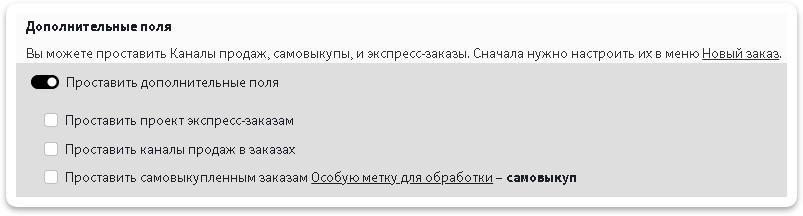
1. Включите пункт `Проставить дополнительные поля`
2. Выберите, что именно вам нужно проставить в заказах, можно проставить следующие параметры:
   * Отдельный проект экспресс заказам, если раннее Вы не отделяли их от основной массы заказов
   * Канал продаж, если ранее вы не пользовались этой функцией
   * Метку **самовыкуп** в специальное доп. поле *Особые метки для обработки* (настраивается в разделе [*новый заказ*](https://topseller.gitbook.io/help/instruction/ts-connect/api/orders/pages/naewViJvBr1JoF4N525C#id-5.-samovykupy-standart-i-pro))

<figure><img src="https://help.topseller.ru/~gitbook/image?url=https%3A%2F%2Fstatic.connect.topseller.ru%2Fsomething%2Fhelp%2Ffaq_ozon%2Fstroke%2F%25D1%2584%25D0%25B8%25D0%25BA%25D1%2581_%25D0%25B4%25D0%25BE%25D0%25BF_%25D0%25BF%25D0%25BE%25D0%25BB%25D0%25B5%25D0%25B9_%25D0%25BE%25D0%25B7%25D0%25BE%25D0%25BD_%25D0%25BE%25D0%25B1%25D0%25B2.png&#x26;width=768&#x26;dpr=4&#x26;quality=100&#x26;sign=7d00319e&#x26;sv=2" alt=""><figcaption></figcaption></figure>

3. Выберите период за который нужно проставить дополнительные поля

<figure><img src="https://help.topseller.ru/~gitbook/image?url=https%3A%2F%2Fstatic.connect.topseller.ru%2Fsomething%2Fhelp%2Ffaq_common%2Fstroke%2F%25D1%2584%25D0%25B8%25D0%25BA%25D1%2581_%25D0%25B2%25D1%258B%25D0%25B1%25D0%25BE%25D1%2580_%25D0%25B4%25D0%25B0%25D1%2582%25D1%258B_%25D1%2584%25D0%25B8%25D0%25BA%25D1%2581%25D0%25B0_%25D0%25BE%25D0%25B1%25D0%25B2.png&#x26;width=768&#x26;dpr=4&#x26;quality=100&#x26;sign=f05c1d80&#x26;sv=2" alt=""><figcaption></figcaption></figure>

4. Нажмите кнопку <img src="https://help.topseller.ru/~gitbook/image?url=https%3A%2F%2Fstatic.connect.topseller.ru%2Fsomething%2Fhelp%2Ffaq_common%2Fstroke%2F%25D0%25BA%25D0%25BD%25D0%25BE%25D0%25BF%25D0%25BA%25D0%25B0_%25D0%25BF%25D1%2580%25D0%25B8%25D0%25BC%25D0%25B5%25D0%25BD%25D0%25B8%25D1%2582%25D1%258C_%25D0%25B2%25D1%258B%25D0%25B1%25D1%2580%25D0%25B0%25D0%25BD%25D0%25BD%25D1%258B%25D0%25B5_%25D1%2584%25D0%25B8%25D0%25BA%25D1%2581%25D1%258B_%25D0%25BE%25D0%25B1%25D0%25B2.png&#x26;width=241&#x26;dpr=4&#x26;quality=100&#x26;sign=901f3bd1&#x26;sv=2" alt="" data-size="line">
5. Дождитесь завершения задачи.

{% hint style="info" %}
💡**Справка.** Отслеживать выполнение задач можно в специальной *"плашке"* справа в верхнем углу:

![](https://help.topseller.ru/~gitbook/image?url=https%3A%2F%2Fstatic.connect.topseller.ru%2Fsomething%2Fhelp%2Ffaq_tasks%2F%25D0%25BF%25D0%25BB%25D0%25B0%25D1%2588%25D0%25BA%25D0%25B0_%25D0%25B7%25D0%25B0%25D0%25B4%25D0%25B0%25D1%2587_%25D0%25BE%25D0%25B1%25D0%25B2.png\&width=300\&dpr=4\&quality=100\&sign=d3c1e831\&sv=2)
{% endhint %}

{% hint style="info" %}
💡**Справка.** При нажатии на нее откроется список выполняющихся задач и задач в очереди
{% endhint %}


---

# Agent Instructions
This documentation is published with GitBook. GitBook is the documentation platform designed so that both humans and AI agents can read, navigate, and reason over technical content effectively. Learn more at gitbook.com.

## Querying This Documentation
If you need additional information that is not directly available in this page, you can query the documentation dynamically by asking a question.

Perform an HTTP GET request on the current page URL with the `ask` query parameter, and the optional `goal` query parameter:

```
GET https://topseller.gitbook.io/help/instruction/ts-connect/api/orders/fix.md?ask=<question>&goal=<endgoal>
```

`ask` is the immediate question: it should be specific, self-contained, and written in natural language.
`goal` is optional and describes the broader end goal you are ultimately trying to accomplish on behalf of the user. GitBook uses it to tailor the answer towards what is most useful for that goal.

The response will contain a direct answer to the question and relevant excerpts and sources from the documentation.

Use this mechanism when the answer is not explicitly present in the current page, you need clarification or additional context, or you want to retrieve related documentation sections.